Time & date video stamping, done right
How to put an accurate, running date and time on surveillance, dashcam and phone video, and on photos, without touching the original file. Video Stamp does it in a few clicks on Windows, Mac and Chromebook.
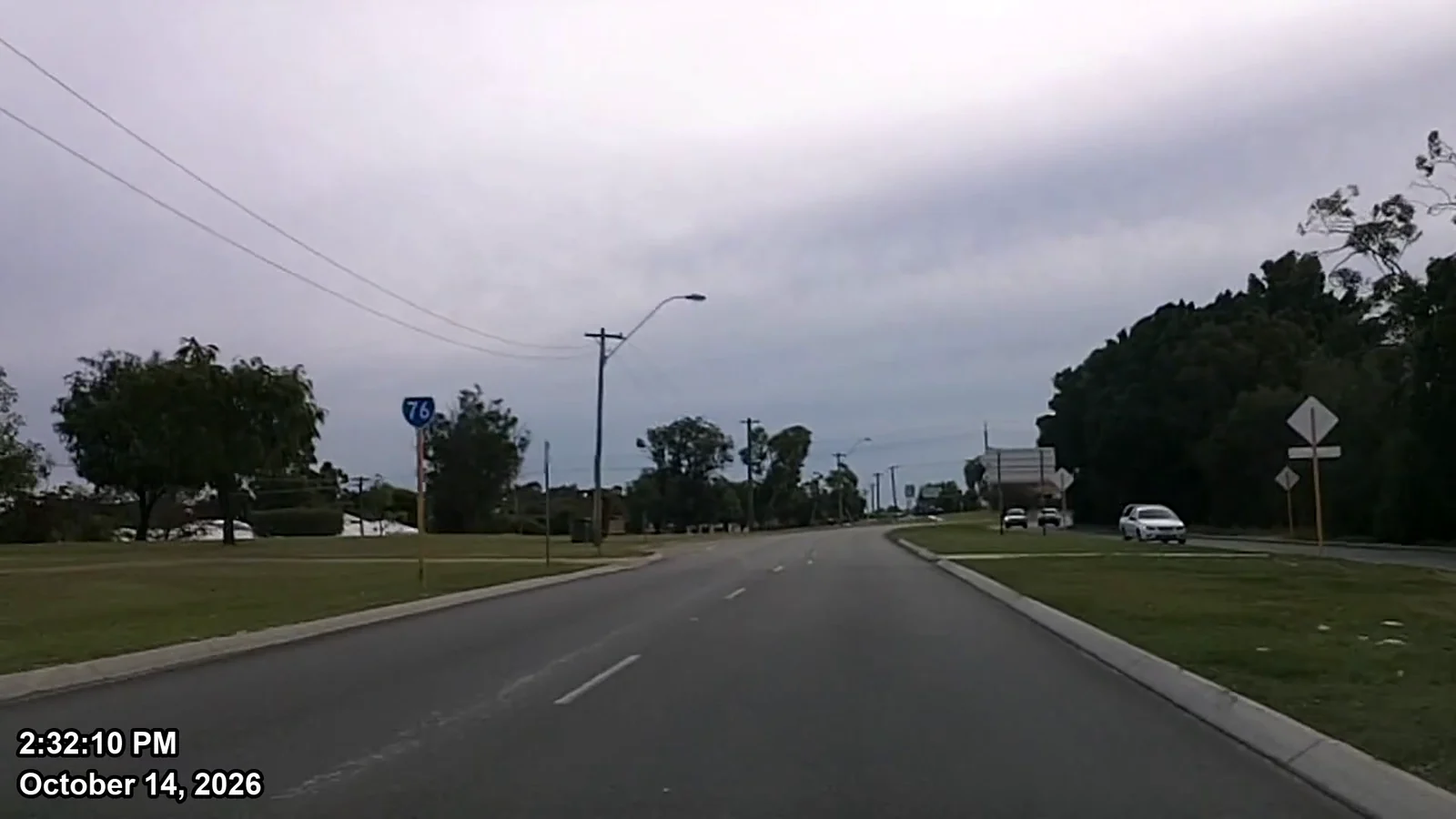
What is time and date video stamping?
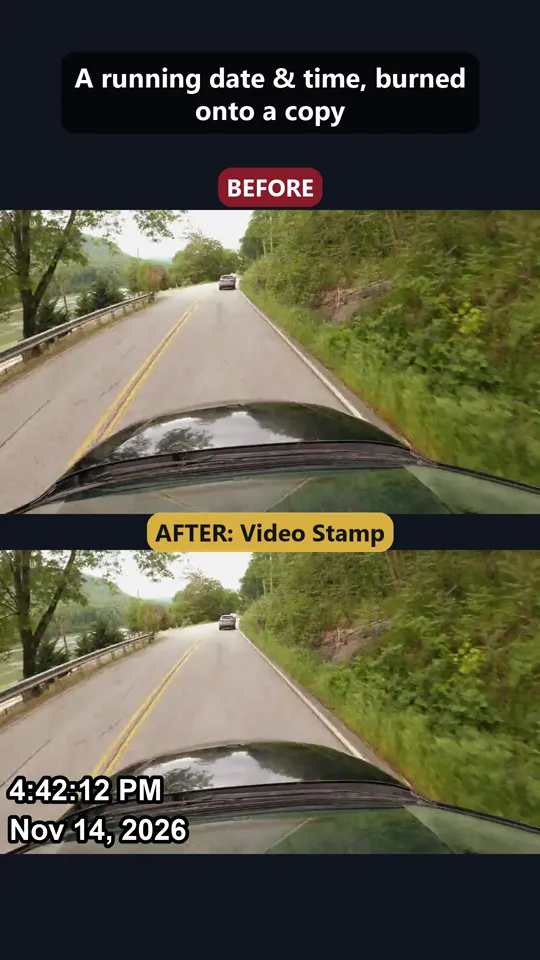
Time and date video stamping means burning a visible, running clock into the picture of a video. Anyone who watches the clip, in a report, a meeting or on a phone, can see exactly when each moment was recorded, without opening the file's properties or trusting a player to show the right time.
Many cameras never show a time on screen. Phones, most action cameras and drones, newer dashcams and many DVR exports keep the recording time hidden in the file's metadata (or in the file name), and that hidden time is easy to lose when a clip is copied, shared or trimmed. A burned-in stamp makes the time part of the picture.
The important part is where the time comes from. Typing a time into a video editor is slow and easy to get wrong, especially across midnight or a daylight-saving change. Proper stamping software reads the recording time from the file itself, converts it to local time, and advances it frame by frame.
Who needs date and time stamped video?
- Private investigators documenting surveillance: the client, adjuster or attorney needs to see when each event happened.
- Insurance SIU and claims investigators reviewing activity checks and claimant video.
- Security companies handing CCTV/DVR exports and officers' phone or body cam clips to clients, police or management.
- Recovery and repossession agents who need dated photos and video of a vehicle's condition.
- Attorneys and paralegals working with clients' dashcam, doorbell and phone footage.
- Anyone who simply needs a dashcam, phone or drone clip to show the date and time it was recorded.
How to stamp the time and date on a video with Video Stamp
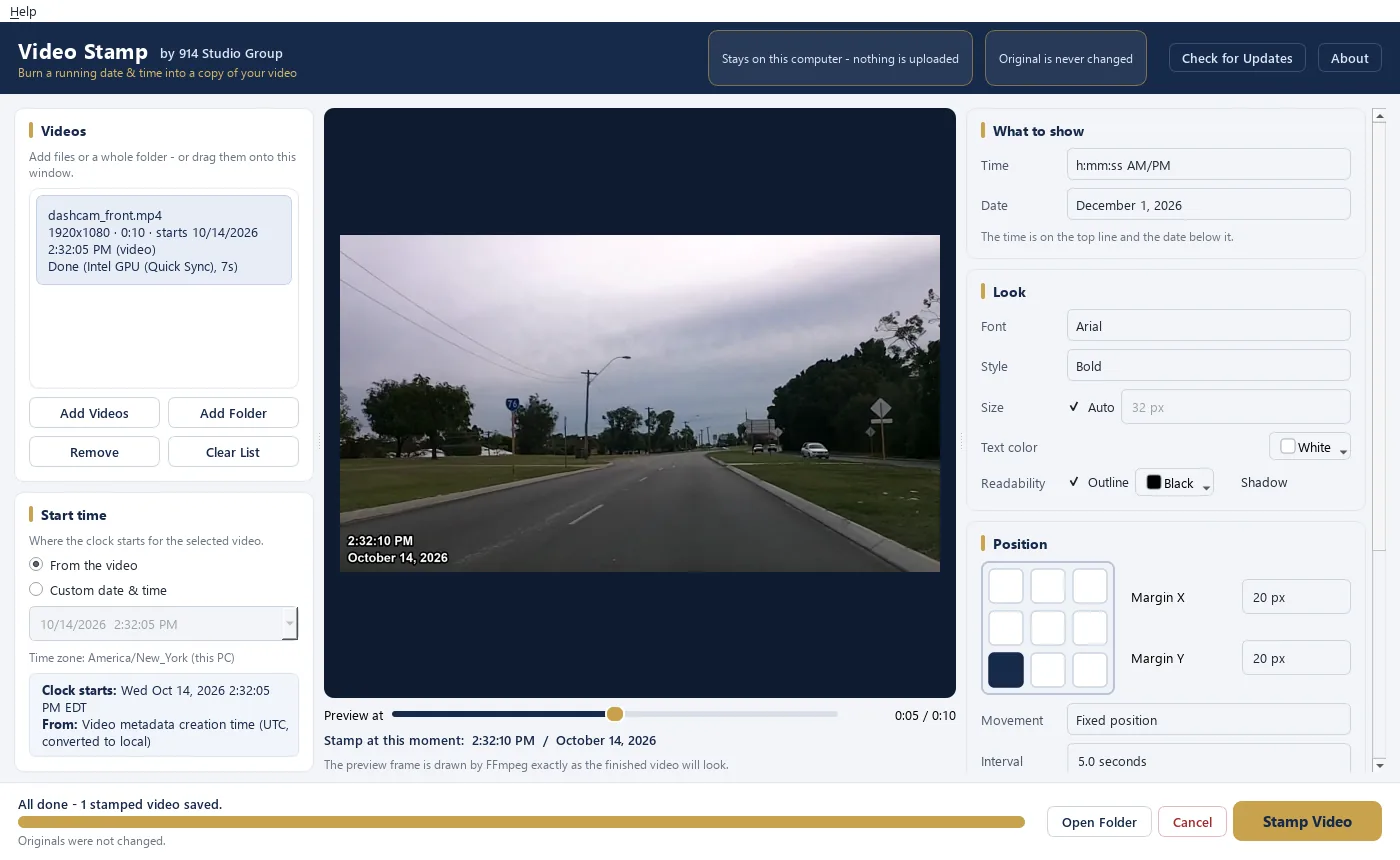
- Add your files. Drag videos (or photos) onto Video Stamp, or click Add Files. Several files can be stamped in one batch.
- Check the start time. Video Stamp reads the recording time from each file and shows it, along with where it came from (the video's metadata or its file name). If it's right, there's nothing to do.
- Choose the look. 12-hour or 24-hour clock, date order, real clock time or elapsed time (00:00:00), and which corner it sits in. The live preview shows exactly what you'll get.
- Stamp. Click Stamp. A new copy with the running date and time is saved next to the original (or in a folder you choose). The original is never changed.
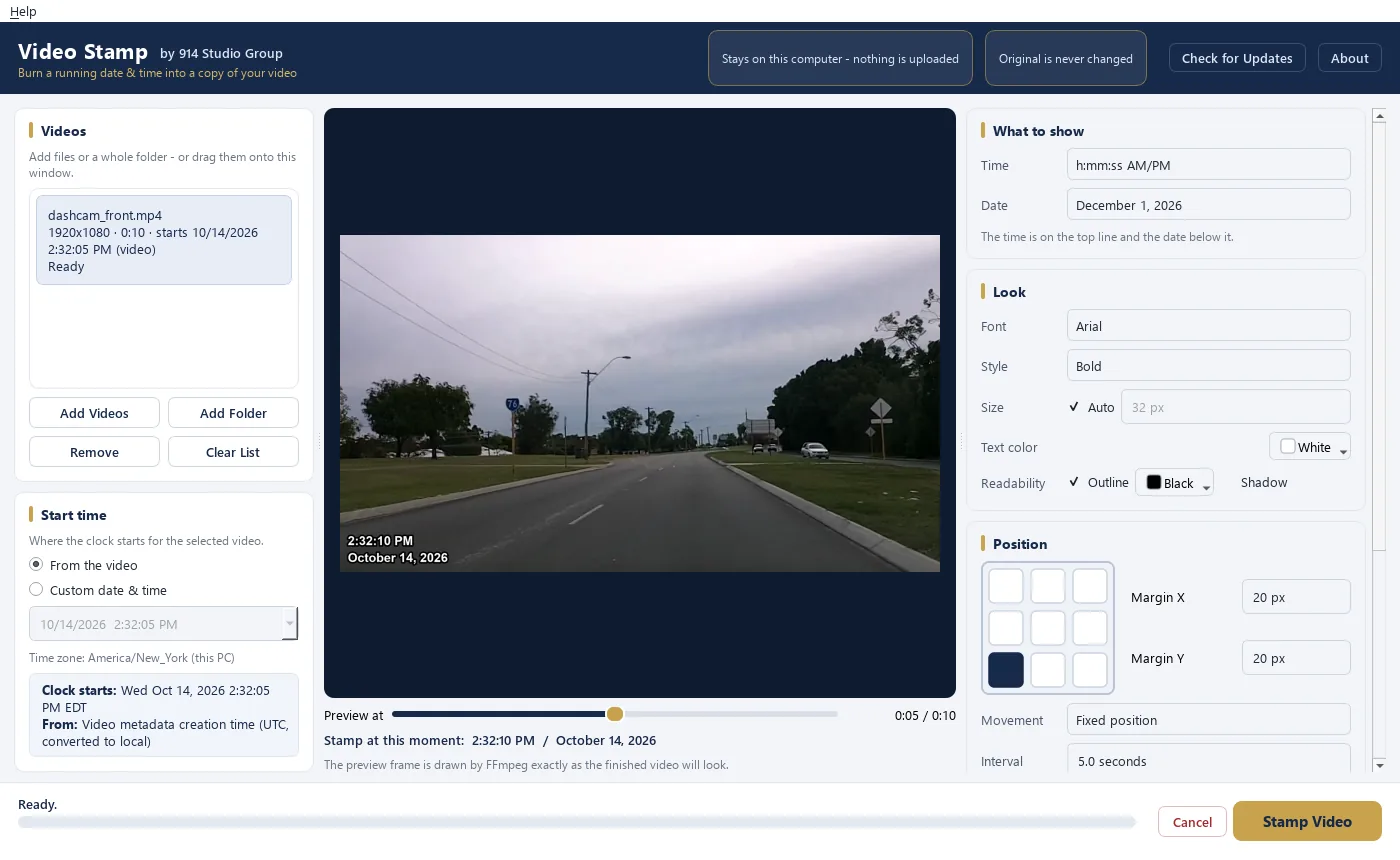
Real recording time vs. a custom start time
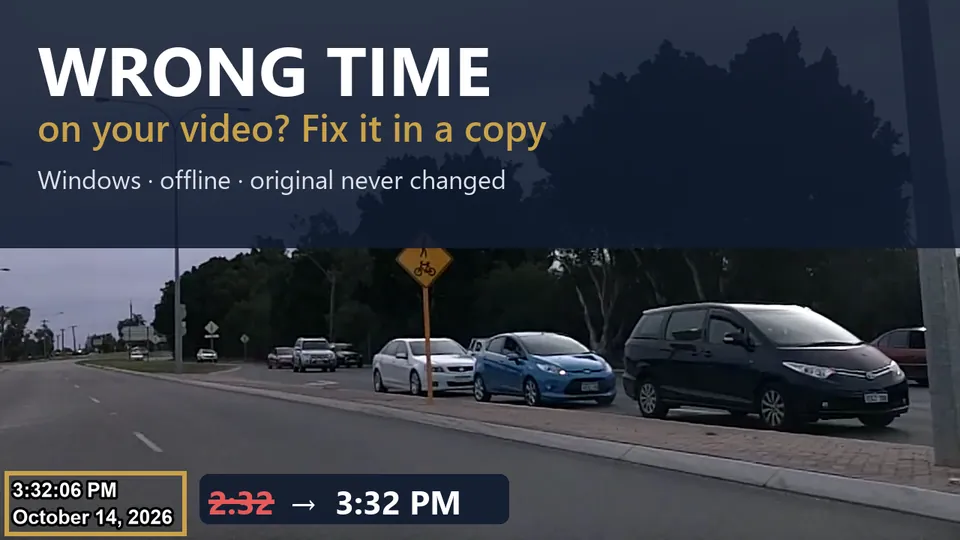
Most of the time you want the real recording time that the camera stored. Video Stamp handles the parts people usually get wrong: times stored in UTC (common on phones and action cameras) are converted to local time, daylight-saving changes are applied, and a clip that runs past midnight rolls over to the next date correctly.
Sometimes the camera's clock was simply wrong: a DVR that was never set, a dashcam that reset to January 1, or a recorder that's an hour off because it ignored daylight saving. In that case choose Custom date & time and enter the correct start time once; the whole stamped copy runs from that time. Write down how you measured the difference (for example, a photo of the recorder's screen next to a phone showing network time) so anyone can check your correction. Our guide surveillance video showing the wrong time walks through the common causes.
Which cameras and video formats can be stamped?
Video Stamp opens the formats investigators and security teams actually receive:
- Phones (iPhone and Android MP4/MOV, including HEVC), action cameras and drones.
- Dashcams and body cams (MP4, MOV, AVI, MKV and others).
- Camcorders (MTS/AVCHD and others).
- DVR/CCTV exports such as .dav, .264, .h264, .265, .h265, .hevc and .mjpeg. Many raw exports have no time inside the file; Video Stamp reads it from the file name when it can and asks you to confirm.
If a file won't open, send us a note; new camera formats are added in free updates.
Date and time stamps on photos, too
Photos often need the same treatment: condition photos, scene photos and case photos that must show when they were taken. Video Stamp stamps JPG, PNG, iPhone HEIC, TIFF, WebP and BMP photos with the time each one was taken, read from the photo's own EXIF data, and does a whole folder in one pass. Videos and photos can go in the same batch.
Why you should stamp a copy and keep the original
Stamping changes every frame of the picture, so the stamped file is a new file. The original should stay exactly as it was recorded or exported, because that is the file someone may later want to examine. Good practice:
- Keep the original export untouched, and record its SHA-256 fingerprint (hash) when you receive it.
- Make the stamped copy for viewing and reports.
- Note in your report where the time came from (metadata, file name, or a corrected start time and how you measured it).
Video Stamp never writes to the original: it opens it read-only and always saves a new copy. You can confirm this yourself by checking that the original's SHA-256 fingerprint is identical before and after stamping.
Ways to add a time and date stamp, compared
There's more than one way to put a time on video. Here's an honest look at the common options.
| Option | Time source | Platforms | Good to know |
|---|---|---|---|
| Video Stamp | Reads the recording time from the file (metadata or file name); custom start time when the camera clock was wrong | Windows, Mac (Apple Silicon), Chromebook | Phones, dashcams, drones, DVR/CCTV formats and photos; stamps a copy; offline; $89 one-time |
| DVMP Pro | Reads recording date/time from camera files | Windows only (per its site) | Long-standing camcorder-focused tool (MP4, MOV, AVCHD, DV, HDV); try its demo with your files |
| Video editors (e.g., Adobe Premiere) | You type the time in by hand | Windows, Mac | Very flexible, but a running clock means a timecode effect plus manual offsets; easy to get wrong across midnight or DST |
| ffmpeg (free, command line) | You supply the start time | All | Free and powerful (drawtext filter), but you work out time zones, the start time and the command yourself |
| Phone timestamp camera apps | The phone's clock at the moment of recording | iPhone, Android | Great for new footage you shoot yourself; can't stamp video that's already been recorded on another device |
Price and free trial
Video Stamp is $89 per computer, or $445 for 5 computers, paid once. Every future update is included for life, with no subscription and no renewal fees. One license works on Windows, Mac or Chromebook, and can be moved to a new computer.
The free trial is the full app with no time limit; stamped copies carry a “TRIAL” watermark until you add a license. Mac users: get it from the Mac page.
Time and date stamping questions
What is time and date video stamping?
It means burning a visible, running date and time into the picture of a video, so anyone watching can see when each moment was recorded. Good stamping software takes the time from the file itself instead of guessing.
How do I add a date and time stamp to a video?
Open the video in Video Stamp, check the start time it reads from the file (or enter the correct one), pick the format and position, and click Stamp. A new stamped copy is saved and the original is left untouched.
Can I fix a video that shows the wrong time?
Yes. If the camera or DVR clock was wrong, enter the real start time once and the whole stamped copy runs from that time. Write down how you measured the difference so others can check it.
Does stamping change my original video?
No. Video Stamp opens the original read-only and always writes the stamp to a new copy. You can confirm it yourself: the original file's SHA-256 fingerprint is the same before and after.
Can it stamp photos as well as video?
Yes. JPG, PNG, iPhone HEIC, TIFF, WebP and BMP photos are stamped with the time each one was taken, read from the photo's own EXIF data. A whole folder can be done in one pass.
Does it work on a Mac or Chromebook?
Yes. Video Stamp runs on Windows 10 and 11, on Macs with Apple Silicon (macOS 13 or later) and on Chromebooks through ChromeOS's built-in Linux. One license works on any of them.
Is my video uploaded anywhere?
No. Video Stamp works completely offline on your own computer. Nothing is sent to us or to anyone else.
How much does Video Stamp cost?
$89 per computer, or $445 for 5 computers, paid once. Every future update is included for life, with no subscription and no renewal fees. The free trial has every feature and adds a TRIAL watermark.
Stamp the time and date on your own footage
The free trial is the full app with no time limit. Stamped copies carry a “TRIAL” watermark until you add a license.
Windows 10/11, Mac (Apple Silicon, macOS 13+) and Chromebook. Questions? msimpson@914studiogroup.com