Automatic replies built right into Outlook.
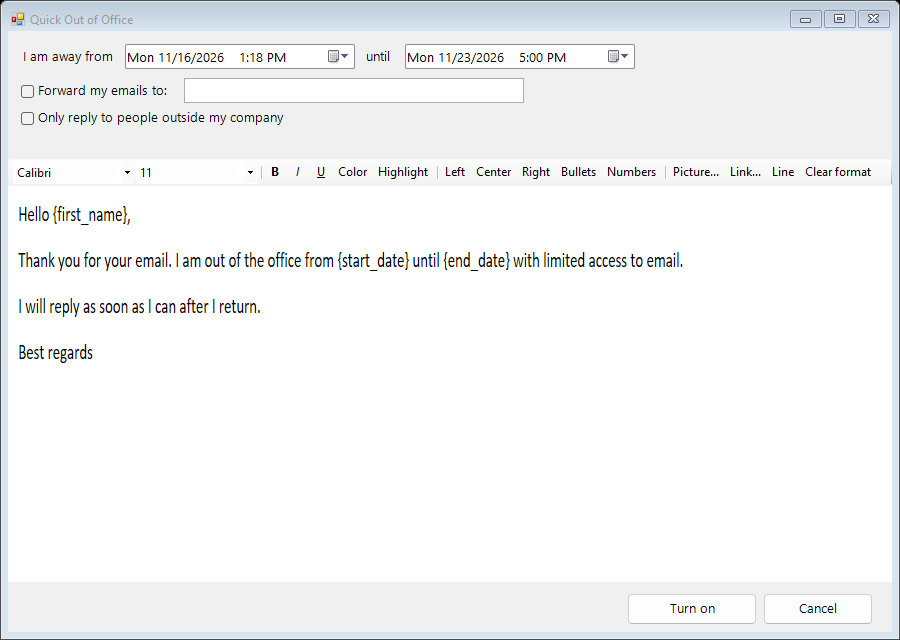
914 Auto Reply adds an Auto Reply tab to Outlook. Set an out-of-office, after-hours, weekend or holiday reply in a minute, or build rules that answer different people in different ways, with your own formatting, pictures and Outlook signatures. It works with every account in Outlook, including Gmail, IMAP and POP accounts.
- One payment: lifetime license for 2 computers, free updates
- Replies come from the account the email arrived on
- Never answers newsletters, no-reply senders or other auto-replies
- Your email stays on your computer: nothing is sent to us
Everything Outlook’s own Automatic Replies can’t do
Outlook’s built-in Automatic Replies only work on Exchange and Microsoft 365 work accounts. 914 Auto Reply works on all of your accounts, and goes much further.
Replies that look like you
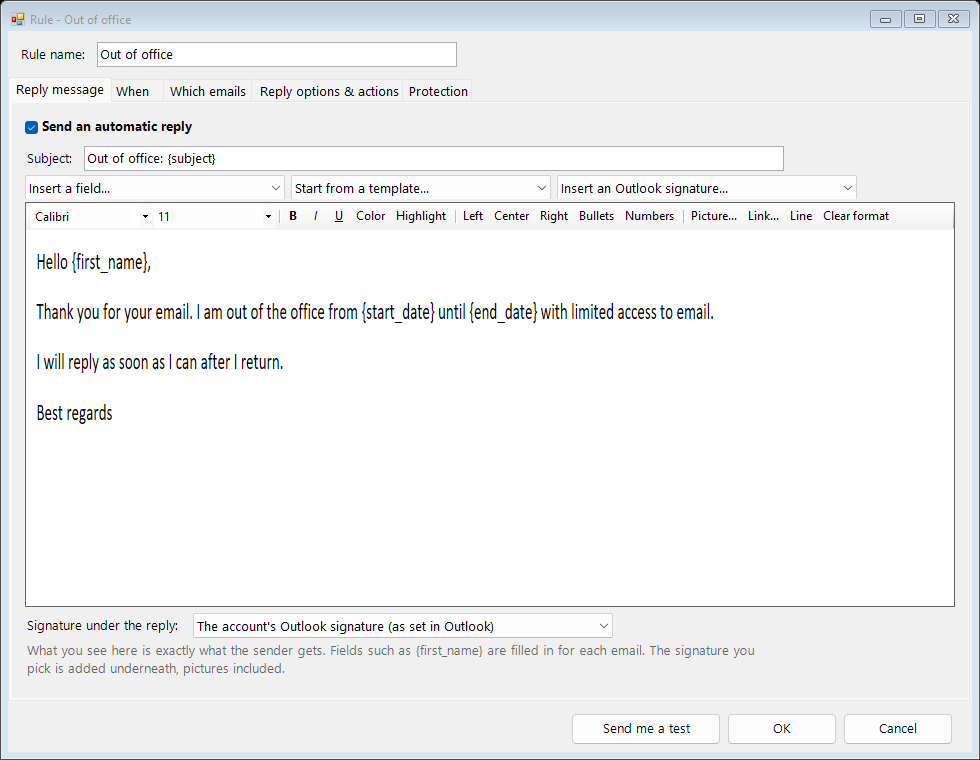
- A real message editor: fonts, sizes, colours, bold, lists, links and pictures (your logo)
- Use any of your Outlook signatures, or insert one into the message
- Personal fields: {{first_name}}, {{sender_name}}, {{subject}}, {{return_date}} and more
- Attach files to the reply (price list, brochure, form)
- CC or BCC someone on every reply
- Ready-made templates: Out of office, After hours, Weekend, Holiday, Thanks for contacting us
Rules for every situation
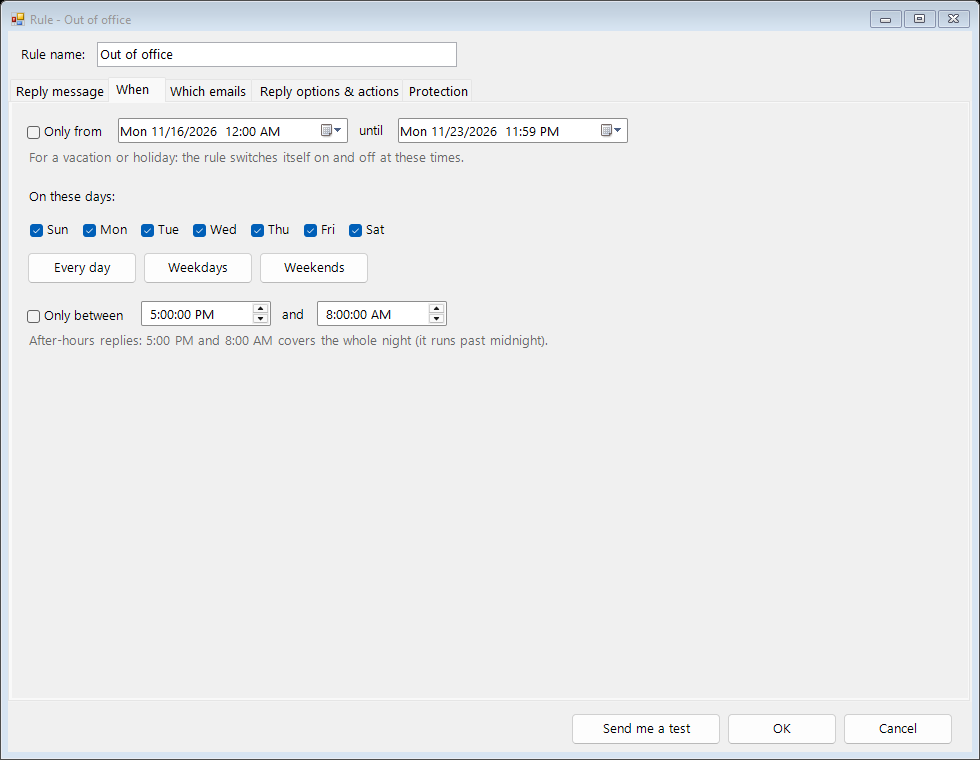
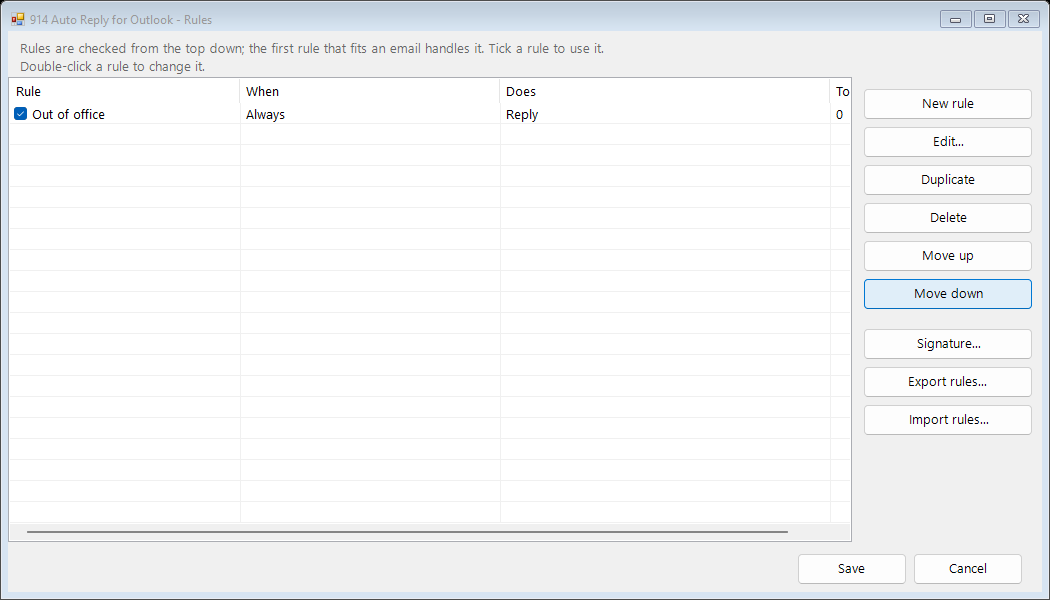
- As many rules as you need, checked from the top down
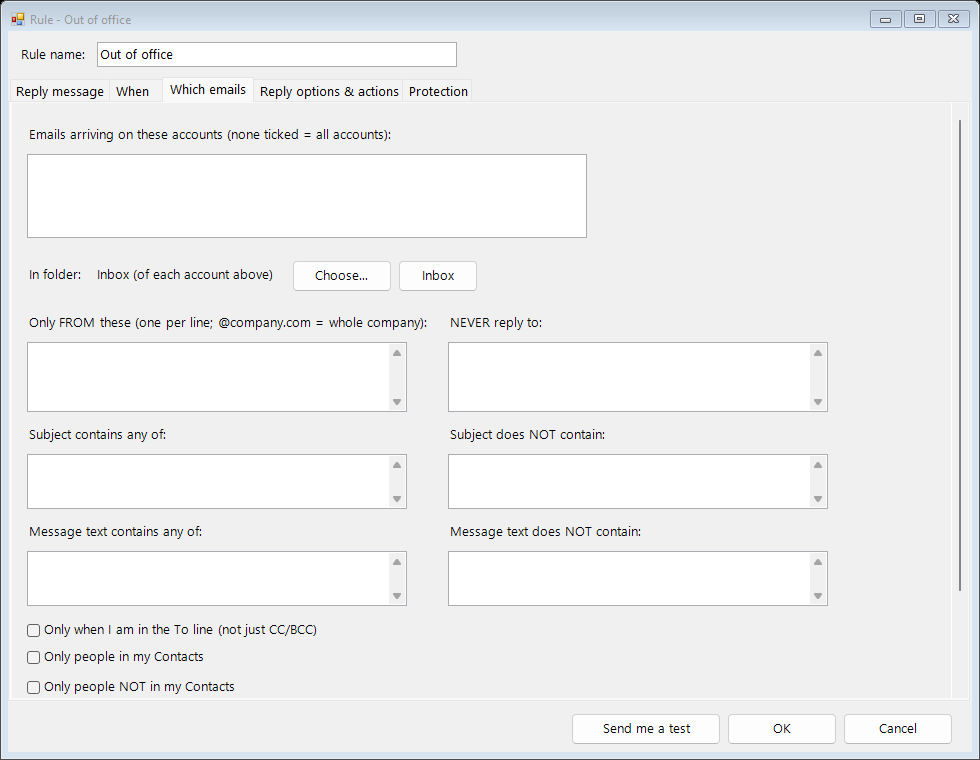
- Choose the accounts and the folder each rule watches
- Date range with times, days of the week, and working hours (overnight too)
- Only from certain people or companies, or never to certain people
- Subject or message words, contacts only, inside or outside your company
- Only when you are in the To line, only with attachments, only high importance
More than replies
- Forward emails to a colleague while you are away, with a note
- Redirect: pass emails on unchanged, so the reply goes straight to the sender
- Mark as read, add a category, flag for follow-up, or move to a folder
- Delay the reply (for example, answer 10 minutes later)
- Send yourself a test of any rule before you switch it on
Safe by design
- One reply per sender per day (you choose the gap), and a daily limit per rule
- Never replies to no-reply addresses, mailing lists, bounces or other auto-replies, so no email loops
- Never answers old mail already in your Inbox
- Activity log: who got a reply, when, and why
- Turn everything on or off with one click on the Auto Reply tab
See how it works
Pay once. Use it for life.
914 Auto Reply for Outlook
$39.99 one time
For up to 2 Windows computers
- Every feature on this page
- Free updates, installed automatically
- No subscription, no renewals
- Email support
Secure checkout by Stripe. Your license key is emailed to you right after payment.
Download and install
Version 1.0.0. SHA-256: 7fc1011b6667dc1c25d549bbd70409b246287497b1b9ec52aa0d8532fee4dc17
Requirements
- Windows 10 or Windows 11
- Classic Outlook for Windows: Microsoft 365 (desktop app), Outlook 2021, 2019 or 2016, 32- or 64-bit
- Any account type in Outlook: Microsoft 365, Outlook.com, Gmail, IMAP and POP
- Outlook must be open for replies to be sent (they are sent by Outlook on your PC)
- Not for the “new Outlook” for Windows, Outlook on the web or Outlook for Mac
Installing
- Close Outlook, then run
914_Auto_Reply_Setup_1.0.0.exeand follow the prompts. Windows asks for permission because the add-in is installed for everyone on the PC. - The installer is digitally signed by Mike Simpson (914 Studio Group). If Windows SmartScreen appears, click More info, check that the publisher shows Mike Simpson, and choose Run anyway.
- Open Outlook and click the new Auto Reply tab.
- Click Enter License on the tab and paste the key from your email. You can set up your rules before you buy; a license is needed to switch replies on.
To uninstall, open Settings → Apps → Installed apps, find 914 Auto Reply for Outlook and choose Uninstall.
Updates
Updates are free. The add-in checks for a new version about once a day (only its version number is sent) and installs it when you close Outlook. You can also click Check for Updates on the Auto Reply tab. Every update is digitally signed and verified before it is installed.
Questions
Does Outlook need to stay open? Yes. The add-in works inside Outlook, so replies are sent while Outlook is running on your PC. If your PC is off, emails are answered when Outlook next opens (only emails that arrived after you switched Auto Reply on).
Will it reply to the same person over and over? No. By default each sender gets one reply per rule every 24 hours, and you can change that.
Can I move it to a new computer? Yes. Click License → Remove license on the old PC and enter the key on the new one. Lost your key? Email us from the address you bought with.
Can I try it first? Yes: install it, set up your rules and send yourself a test reply. A license key switches automatic replies on.
Read the license agreement. Questions? Contact us.